Each device, its own direction.
Reverse vertical and horizontal scrolling separately for mice and for trackpads. The Trackpad & Magic Mouse settings cover the built-in trackpad, Magic Trackpad and Magic Mouse.

ReverseWheel 2.0 for Mac
Reverse the mouse wheel and keep natural scrolling on the trackpad. Set direction and speed for each device and for each app.

Requires macOS 15 or later.
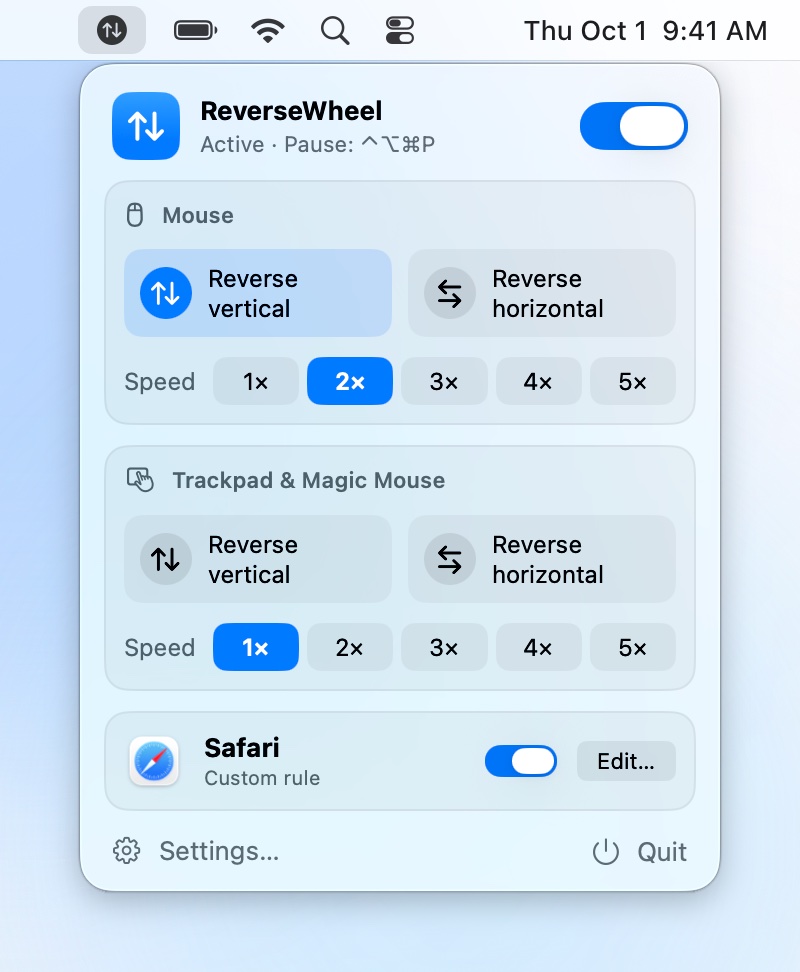
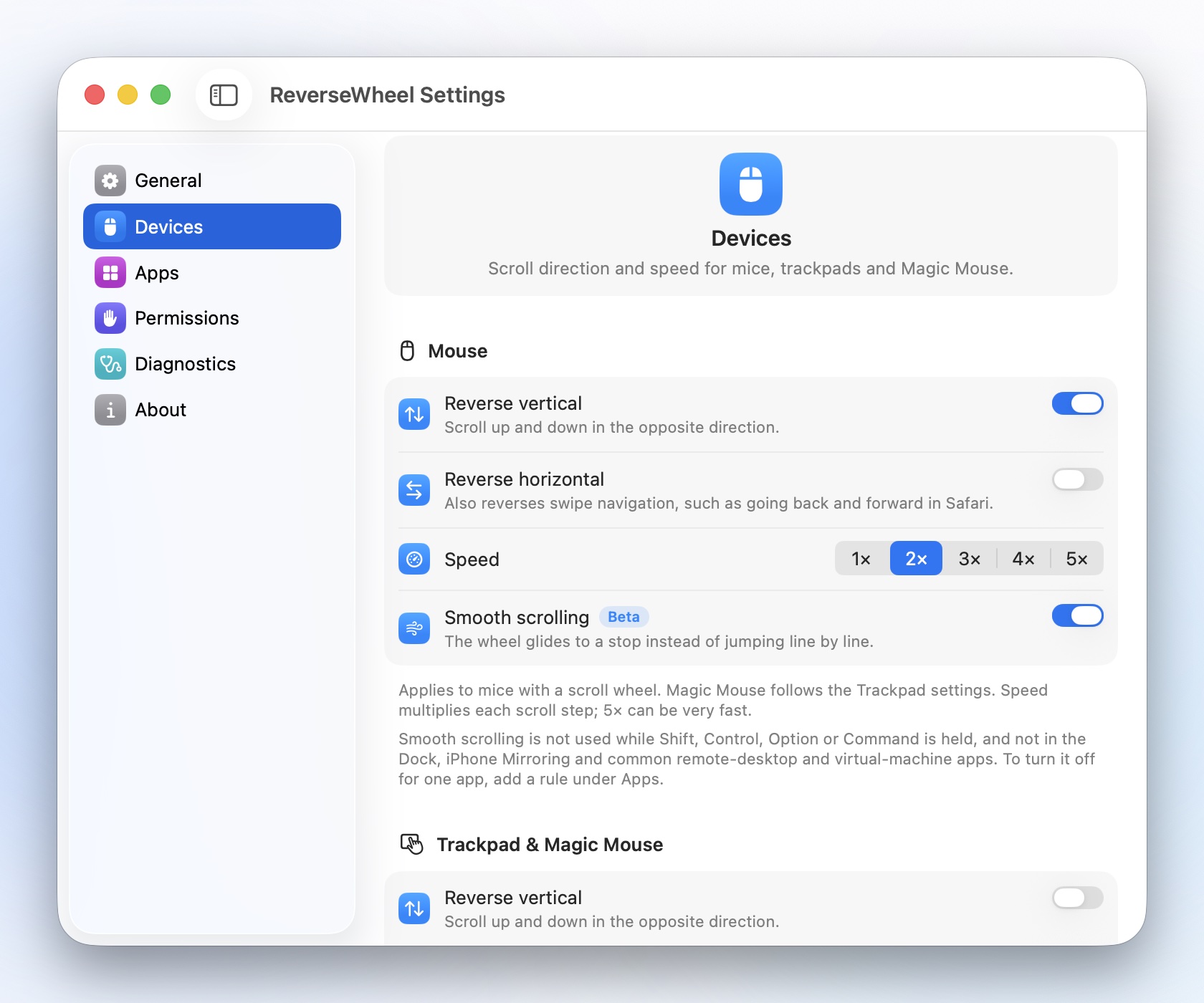
Reverse vertical and horizontal scrolling separately for mice and for trackpads. The Trackpad & Magic Mouse settings cover the built-in trackpad, Magic Trackpad and Magic Mouse.
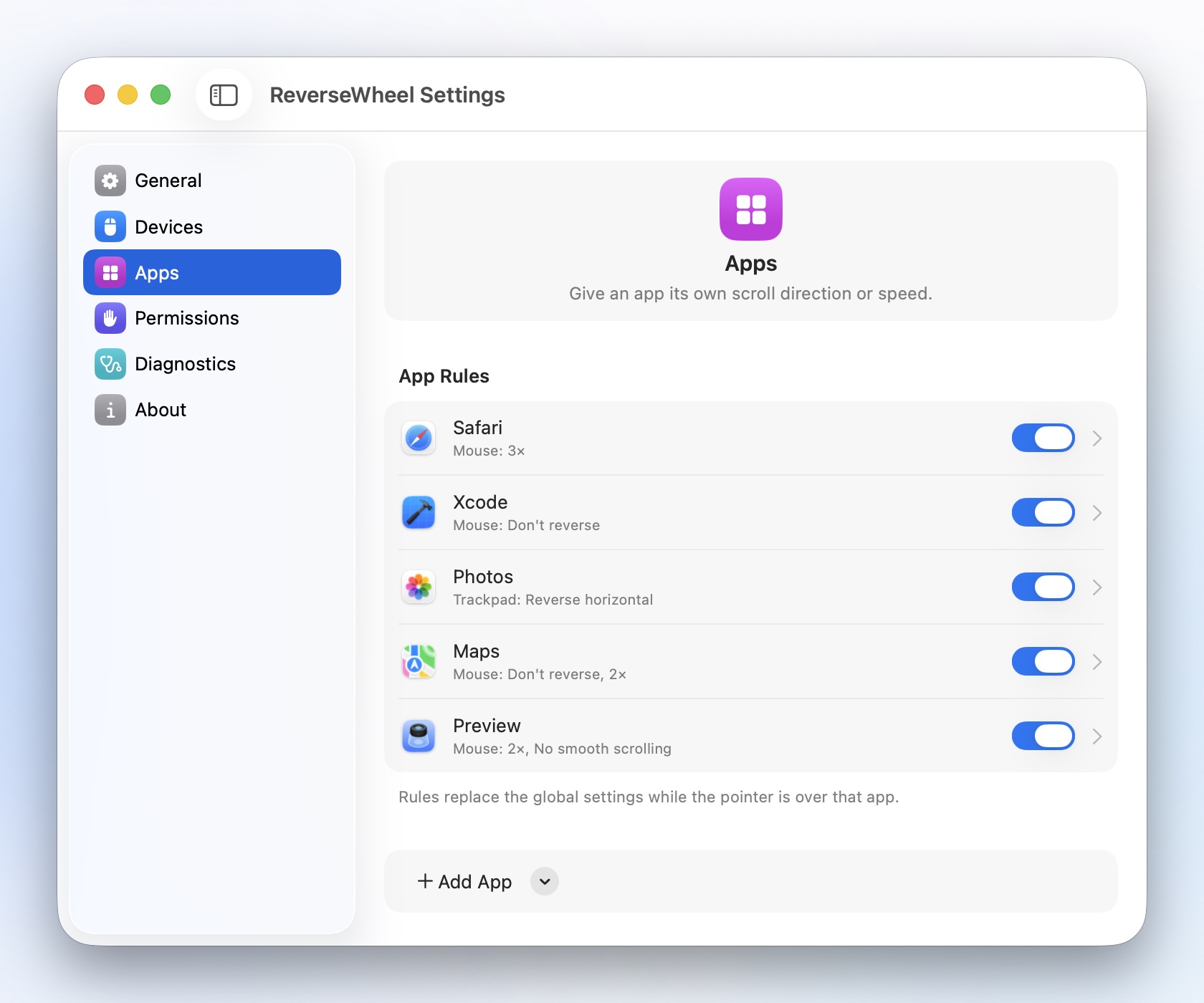
Give any app its own direction and speed, or let each setting follow the global value. A rule applies while the pointer is over that app, and you add apps straight from the ones that are running.
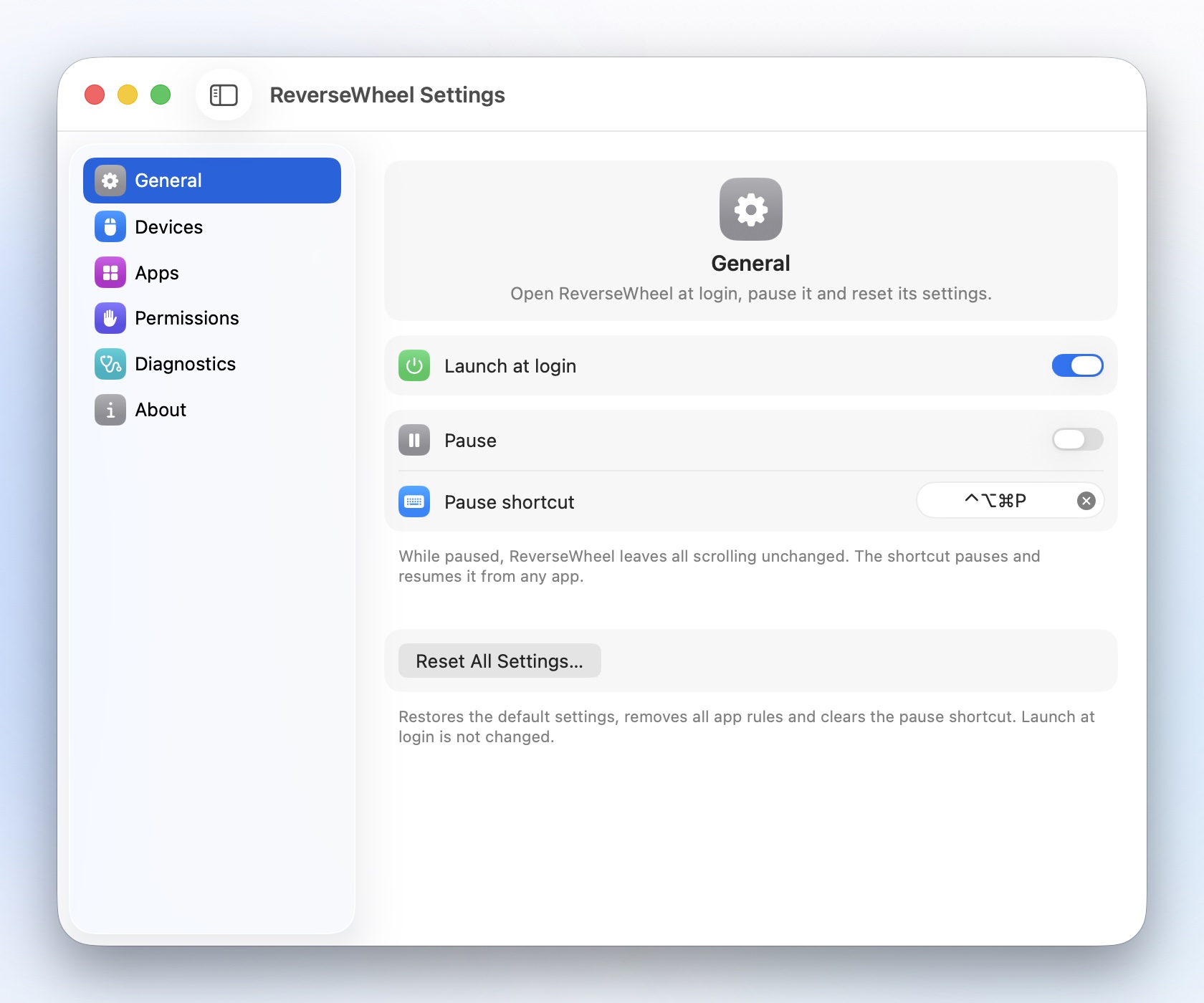
Pause ReverseWheel from the menu bar or from any app with a shortcut of your choice, and let it launch at login.
Set the speed for the mouse and the trackpad separately. Speed multiplies each scroll step.
On mice with a scroll wheel, ReverseWheel can replace each notch with a few small scroll steps, so the wheel glides to a stop instead of jumping line by line. Smooth scrolling is off by default; once it’s on, you can turn it off for individual apps.
If something goes wrong, ReverseWheel can record for up to 24 hours and create a report that you send to support yourself. It stays on your Mac until you send it and never contains keystrokes or content.
The app sends nothing over the network. It needs Accessibility access only to change scrolling: direction, speed and, if you turn it on, smooth scrolling. It never reads your keystrokes.
Read the privacy policy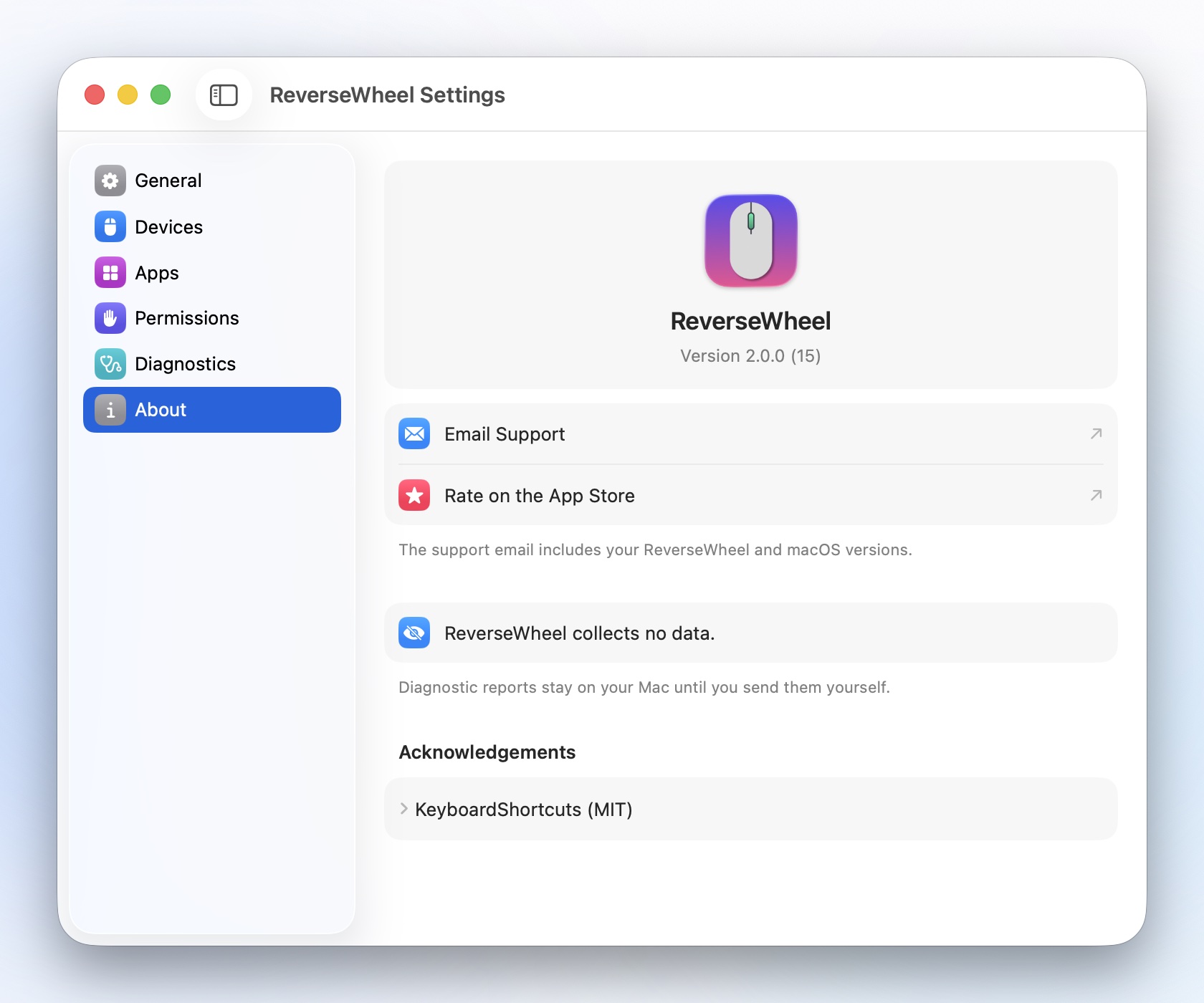
Mice with a scroll wheel, the built-in trackpad, Magic Trackpad and Magic Mouse. Mice use the Mouse settings; trackpads and Magic Mouse use the Trackpad & Magic Mouse settings.
macOS only lets an app change scroll events after you allow Accessibility access. ReverseWheel only changes scrolling: direction, speed and, if you turn it on, smooth scrolling. It never reads your keystrokes and collects no data.
Yes. Magic Mouse scrolls with gestures, like a trackpad, so it follows the Trackpad & Magic Mouse settings, not the Mouse settings. Smooth scrolling is only for mice with a scroll wheel; Magic Mouse and trackpads are never smoothed.
Yes, including trackpad momentum. In Safari and other WebKit views, such as Mail, the speed you set doesn’t apply to momentum, which keeps its normal speed.
If another app reverses scrolling too, the effects cancel out or add up. ReverseWheel tells you in its settings when such a tool is running. Turn off scroll reversal in the other app, or quit it. If your mouse’s own software makes scrolling smooth, ReverseWheel may treat that mouse as a trackpad; the Trackpad & Magic Mouse settings then apply.
A Mac with macOS 15 or later. ReverseWheel is available in English, German and French.
If ReverseWheel is turned on in System Settings but still shows “Access not granted”, remove it from the list and add it again: 1. In ReverseWheel, open Settings › Permissions and click “Open Accessibility Settings…”. 2. Select ReverseWheel and click the Remove button (–). 3. Click the Add button (+), choose ReverseWheel in the Applications folder and turn it on. ReverseWheel notices the change within a few seconds. You don’t need to restart it.
Write to reversewheel@idelberger-consulting.de, or choose Email Support in Settings › About. If something isn’t working, turn on Recording in Settings › Diagnostics, reproduce the problem, then choose Create Report… and send it. The report stays on your Mac until you send it.
Requires macOS 15 or later.